Brief Overview↪ Designing headers and footers in WordPress is now simpler and more flexible with Gutenberg Full Site Editing (FSE). This powerful feature allows users to visually customize every part of their website, including the header and footer, using block-based tools with no coding required. In this guide, you will learn how to enable FSE, choose a compatible block theme, and build modern, responsive headers and footers using the Site Editor.
In 2025, Gutenberg Full Site Editing (FSE) is changing how we build WordPress websites — no coding, no page builders, just blocks.
If you’re wondering how to design custom headers and footers using FSE, this tutorial will guide you step-by-step.
Whether you’re a blogger, designer, or small business owner, this guide will help you master one of the most powerful tools in modern WordPress.
In this step-by-step guide, you’ll learn:
- What FSE is and how it works
- How to activate and use the Site Editor
- How to create custom headers and footers
- Tips, tools, and troubleshooting strategies
- Bonus: Plugins that enhance the FSE experience
What is Gutenberg Full Site Editing (FSE)?
Full Site Editing (FSE) is a game-changing feature introduced in WordPress 5.9 and improved in later versions.
It allows users to edit all parts of their website using the block editor, including headers, footers, and templates.
Key benefits:
- No need for external page builders
- Global control over layout elements
- Works with modern block-based themes like Twenty Twenty-five, Neve FSE, Blocksy, and Frost
FSE Includes:
- Site Editor (Appearance > Editor)
- Template & Template Parts (Header, Footer, etc.)
- Global Styles
- Block-based themes only
Step-by-Step: How to Design a Header in Gutenberg FSE
Step 1: Switch to a Block Theme
Go to Appearance > Themes
Search and install a block-based theme such as:

- Twenty Twenty-Five (default WordPress theme)
- Neve FSE
- Frost
Activate the theme.
Step 2: Launch the Site Editor
Navigate to: Appearance > Editor
You’ll now see a visual editor that allows you to modify templates like homepage, single post, and template parts (e.g. header and footer).
Step 3: Edit or Create a Header
Option 1: Edit Existing Header
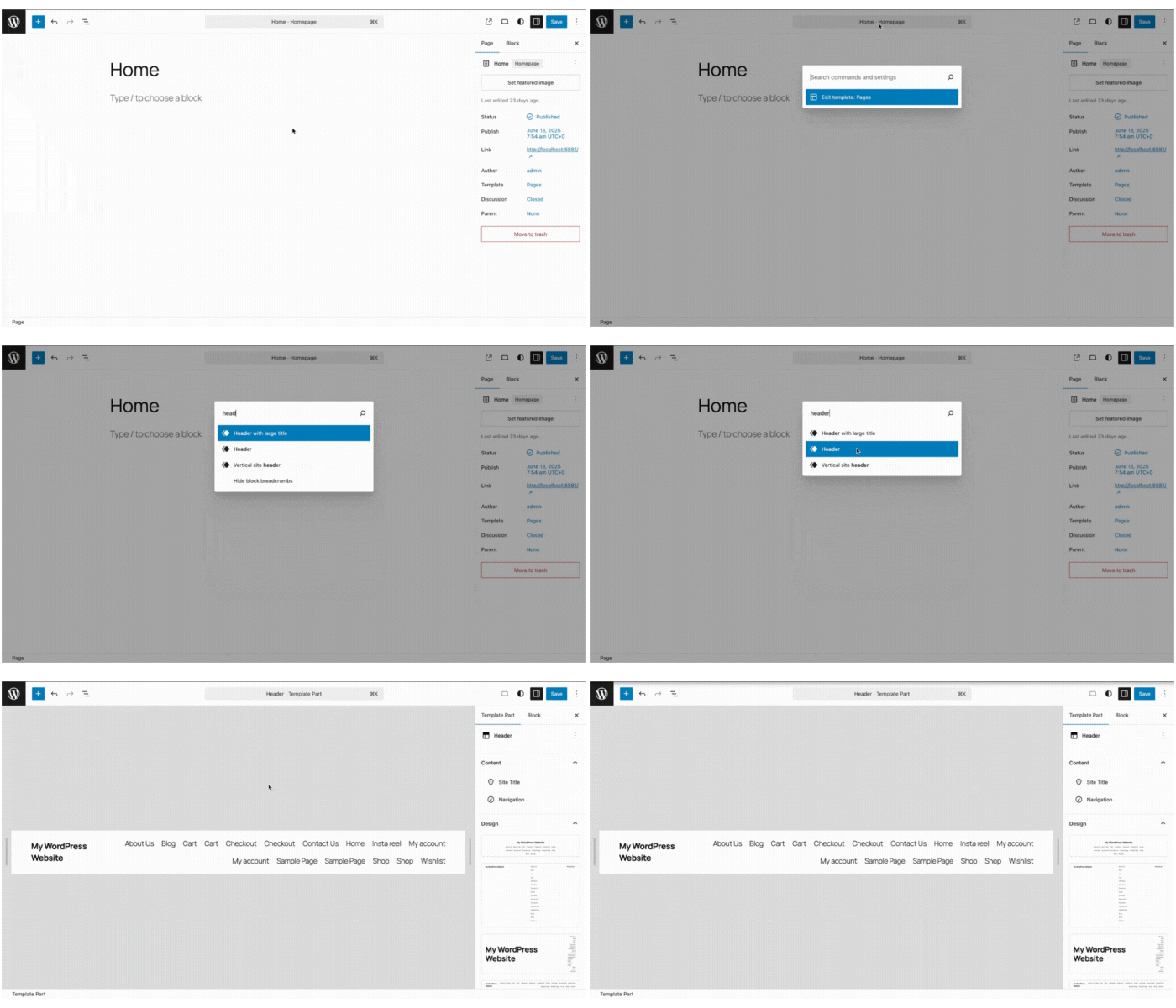
- In the editor, click the “Header” section at the top.
- Select “Edit” when the floating bar appears.
Option 2: Create a New Header Template Part
- Go to Template Parts > Add New
- Name it “Custom Header”
- Select “Header” as the type and click Create
Step 4: Build Your Header Using Blocks
Here are some essential blocks for header design:
- Site Logo – Upload or select your logo
- Navigation – Add a menu block
- Site Title – Optional but good for SEO
- Buttons – Call-to-action buttons like “Book Now” or “Contact”
- Search – Especially useful for blogs or stores
Use Group, Row, and Stack blocks for structure and responsive alignment.
Step-by-Step: How to Design a Footer in Gutenberg FSE
Just like headers, footers are handled through template parts.
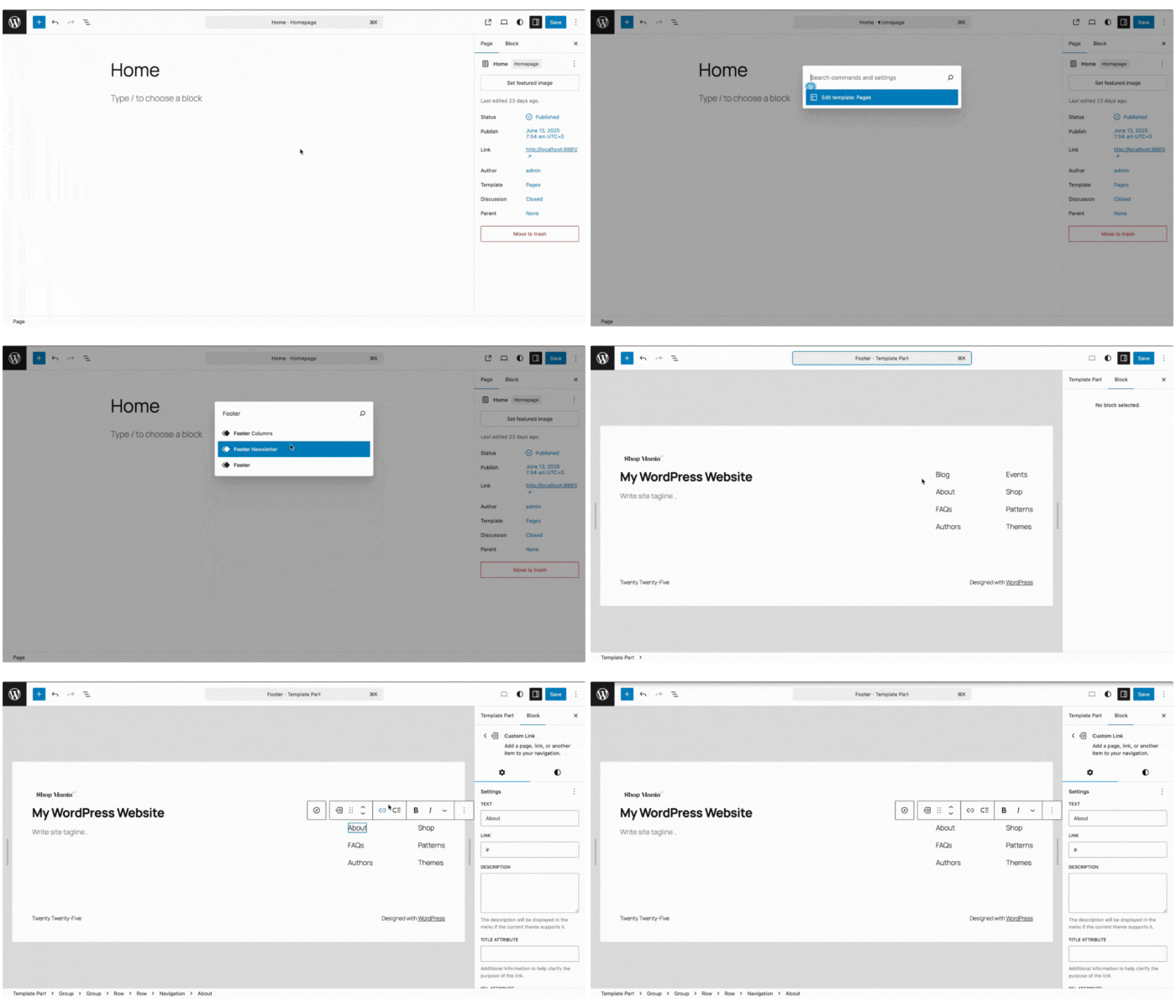
Step 1: Access the Footer
- In Site Editor, scroll to the bottom of the page template and click the Footer block.
- Click Edit to modify.
Step 2: Add Footer Elements
Suggested blocks for your footer:
- Columns – Create a 2 or 3-column layout
- Paragraph – Add a copyright notice
- Navigation – Link to Privacy Policy, Sitemap, etc.
- Social Icons – Add links to your social platforms
- Newsletter Form – If you use a plugin like MailPoet or ConvertKit
tep 3: Style the Footer
Customize colors, padding, background, font sizes, and spacing using the block settings panel on the right sidebar.
Add Global Styles
From the Site Editor dashboard:
- Click the Styles (paintbrush icon) in the top-right corner
- Here you can adjust:
- Typography
- Color palette
- Spacing
- Border radius
- Link styles
Changes made here apply site-wide, keeping design consistent.
Enhance Header/Footer Design with Plugins
Although Gutenberg FSE is powerful, a few plugins can extend its design capability even further:
| Plugin | Key Features |
|---|---|
| Vayu Blocks | Layout presets, advanced typography |
| Blocksy Companion | Sticky headers, transparent overlays |
| Kadence Blocks | Flexible header rows and navigation |
| Otter Blocks | Smart section presets and responsiveness |
Install these plugins to unlock extra styling options, advanced positioning, and interactivity
Common Issues & Troubleshooting
| Issue | Fix |
|---|---|
| Header/Footer not showing | Confirm you’re using a block theme |
| Mobile menu not responsive | Use the Navigation block’s built-in hamburger toggle |
| Padding or spacing issues | Use Spacer/Group blocks or adjust block settings |
| Want unique header per page | Create a new template or override template part |
Export & Reuse Header/Footer Designs
You can export template parts as JSON or use tools like WPCodeBox or Reusable Blocks Extended to save and import designs across multiple sites.
Final Words
Designing headers and footers in WordPress no longer requires technical knowledge. With Gutenberg FSE, you can visually build layout elements that are responsive, fast, and easy to manage.
By learning how to use block themes, template parts, and Site Editor tools, you can completely own your site’s design — without writing a single line of code.
FAQ’s
Q. Can I use FSE with classic themes like Astra or OceanWP?
Ans. No. FSE only works with block-based themes. However, hybrid support is being rolled out gradually.
Q. Can I create multiple headers/footers for different pages?
Ans. Yes. WordPress lets you assign different templates (and template parts) to pages, posts, or even categories.
Q. Are FSE headers and footers SEO-friendly?
Ans. Yes. Blocks generate semantic HTML5 markup, which is fully crawlable and optimized for SEO.
Q. Best FSE theme?
Ans. You can use Vayu Theme for creating a Full Site Editing Wbesite using Vayu Block Addon’s
Also Read: